Link Schemes | Dependency Governance Documentation
Link Schemes documentation.
Link Schemes define which Jira work item link types are allowed and how they can be used.
They are the fundamental building blocks for controlling work item relationships in Depencency Governance for Jira.
Each Link Scheme can be reused across multiple spaces and work types via Work Type Link Schemes.
Link Schemes Administration View - Table Columns
The Link Schemes section is available in the Depencency Governance administration menu.
Entering this section displays a table of existing Link Schemes, providing an overview of how link rules are defined and where they are used.
The table contains the following columns:
Name
- Displays the name of the Link Scheme
- An optional description is shown directly under the name
- The name is a clickable link that opens the configuration view of the scheme
Work Type Link Schemes
- Displays a list of Work Type Link Schemes that reference this Link Scheme
- Each listed Work Type Link Scheme is clickable
- Clicking a name navigates directly to the selected Work Type Link Scheme
This column provides visibility into where a given Link Scheme is actively used.
Operations
The Operations column provides the following actions:
Configure
- Opens the configuration view of the selected Link Scheme
- This action is equivalent to clicking the scheme name
Edit
- Allows editing:
- Name
- Description
- Changes are applied after saving and are immediately reflected in the table
Copy
- Creates a new Link Scheme as a duplicate of the selected one
- The new scheme name is automatically prefixed with “Copy of”
- All link type configurations are copied
This is useful for creating variations without starting from scratch.
Delete
- Opens a confirmation dialog
- After confirmation, the Link Scheme is permanently deleted
Deletion is allowed only if the scheme is not actively used.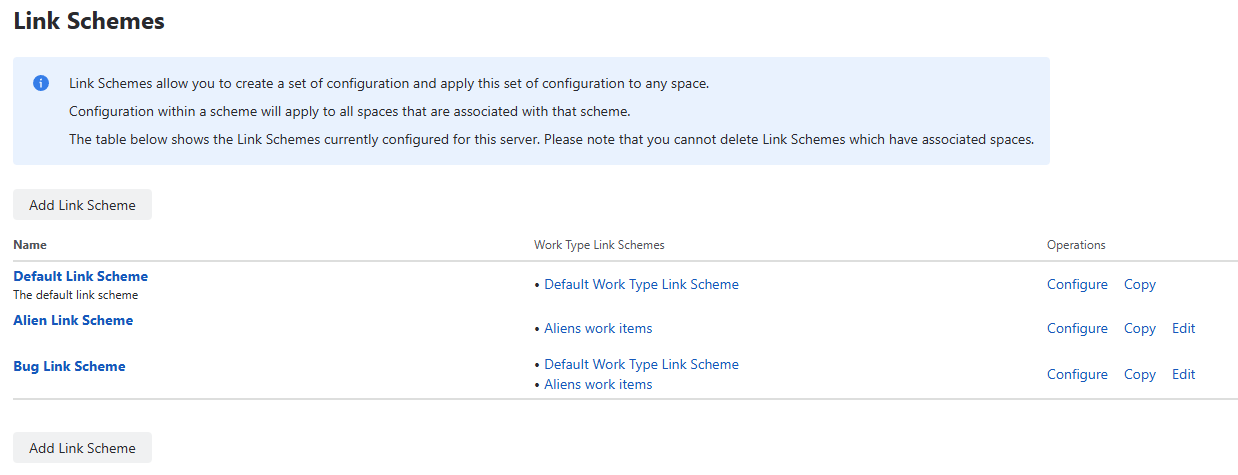
Creating a New Link Scheme
At the top of the Link Schemes screen, an Add Link Scheme button is available.
When clicked:
- A modal dialog is displayed
- The administrator provides:
- Name
- Description
- After confirmation, the new Link Scheme is created and added to the table
The new scheme is initially without any restrictions and can be configured immediately.
Link Scheme Configuration View - Table Columns
Clicking the scheme name or using Configure opens the detailed configuration view.
This view displays a table of link types that defines how work item links behave within this scheme.
The table contains the following columns:
Order
- Defines the display order of link types
- Supports drag and drop reordering
- The order determines:
- the position of link types in selectors,
- the order in which links appear in the UI
Changing the order affects only presentation, not validation logic.
Name
- Displays the logical name of the link type
- Aggregates both inward and outward directions under a single name
- In most cases:
- One inward link and one outward link share the same Name
Exception:
- The Relates to link appears only once as Relates
- Work Items linked using Relates see the same link on both sides, with no direction distinction
Link
- Displays the direction-specific link name
- Indicates whether the row represents:
- an outward link, or
- an inward link
This column reflects the actual Jira link direction used during validation.
Status
- A toggle that enables or disables the specific link
- Controls whether the link type is allowed:
- in the given direction
- within this Link Scheme
Disabled links cannot be used to create new work item relationships.
Operations
Each row provides two actions:
Disable Others
- Keeps the selected link type enabled
- Automatically disables all other link types in the scheme
This action is useful when:
- creating a strict scheme that allows only one link type,
- quickly narrowing the allowed link types without manual toggling.
Default
- Marks the selected link type as the default link type
- The default link type is:
- preselected in link creation UI,
- used as the suggested option where applicable
Only one link type can be marked as default within a Link Scheme.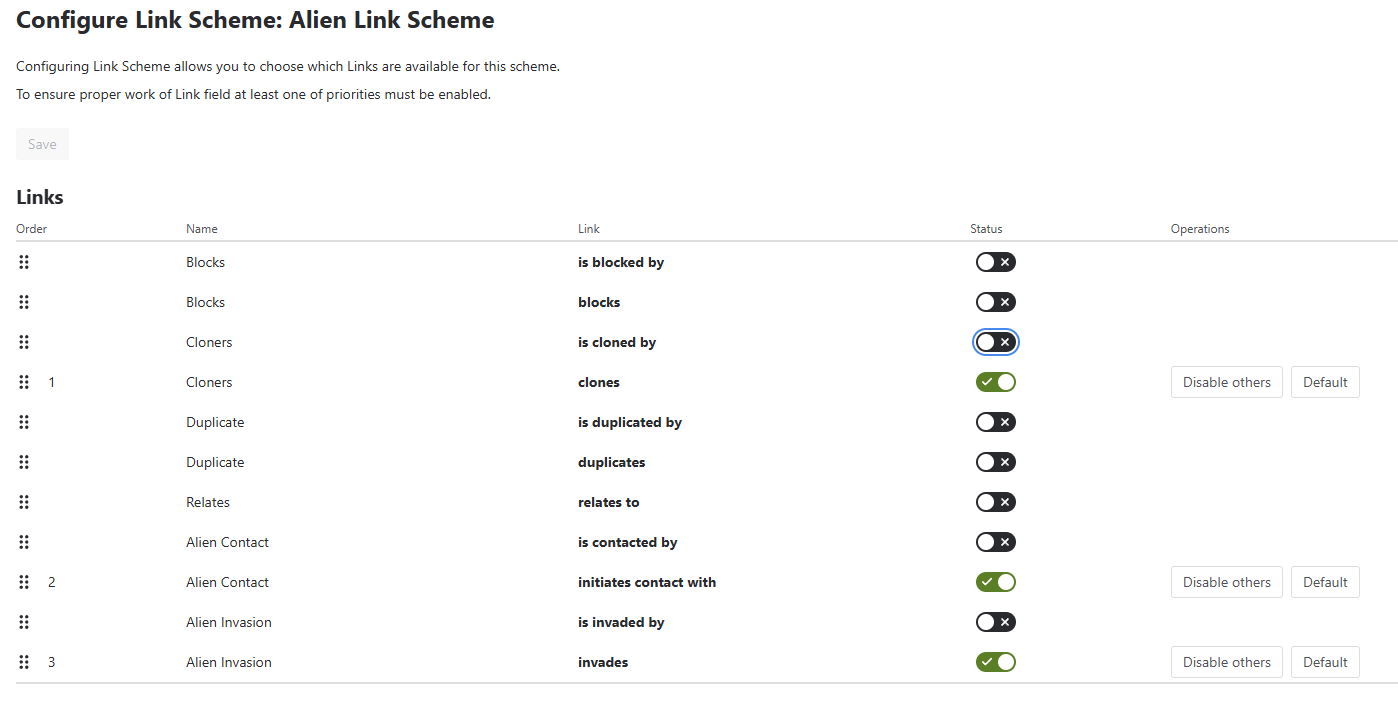
Save Behavior
- All configuration changes require explicit confirmation using the Save action
- Changes take effect immediately for:
- all Work Type Link Schemes referencing this Link Scheme,
- all Spaces and Work Types using those schemes
- Existing work items links are not modified
- Reordering affects only how links are presented in the UI
How Link Schemes Are Used
Link Schemes are not assigned directly to spaces.
Instead:
- They are referenced by Work Type Link Schemes
- An Work Type Link Scheme:
- Defines a default Link Scheme
- Optionally assigns specific Link Schemes to individual work types
This design allows:
- Reuse of Link Schemes across multiple spaces
- Different link behavior for different work types within the same space
→ See: Work Type Link Schemes
Validation Behavior
Link Schemes are evaluated every time a link is created or updated through:
- Dependencies Panel
- Link Work Item Action
- Bulk Link Operation
For a link to be created:
- The source work item’s Link Scheme must allow the link type outward
- The destination work item’s Link Scheme must allow the link type inward
If either condition is not met, the operation is blocked.
Permissions
Managing Link Schemes requires:
- Jira administrator or space administrator permissions
- Access to Depencency Governance administration
Users without these permissions cannot modify Link Schemes but are affected by their rules.