Field Schemes | Dependency Governance Documentation
Field Schemes documentation.
Field Schemes define which fields are displayed for linked work items and in what order.
They control the presentation layer of linked work items in the Dependencies Panel and are a key part of the Linked Work Item Details feature.
Field Schemes are reusable and can be applied across multiple spaces and work types via Work Type Field Schemes.
Purpose of Field Schemes
Field Schemes allow you to:
- Control which fields are visible for linked work items
- Define the order in which fields are displayed
- Adjust information density in the panel
- Create reusable configurations for different use cases
Instead of showing all available data, Field Schemes ensure that only relevant and meaningful information is presented.
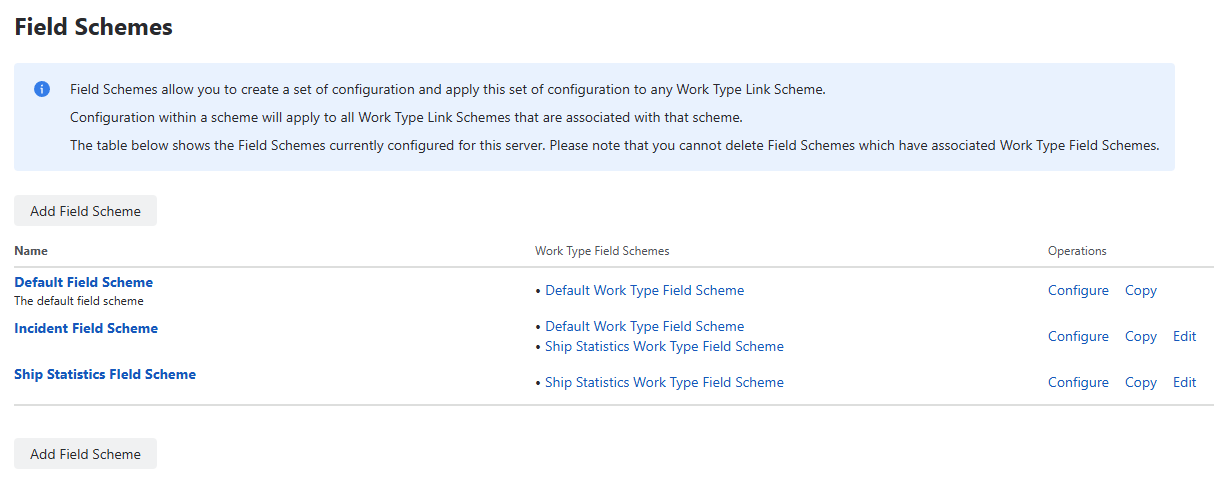
Field Schemes Administration View - Table Columns
The Field Schemes section is available in the Depencency Governance administration menu.
It displays a table of all existing Field Schemes.
Name
- Displays the name of the Field Scheme
- An optional description is shown under the name
- Clicking the name opens the configuration view
Work Type Field Schemes
- Displays a list of Work Type Field Schemes that reference this Field Scheme
- Each item is clickable and navigates to the selected configuration
This helps identify where a given Field Scheme is used.
Operations
Configure
- Opens the configuration view
- Equivalent to clicking the scheme name
Edit
- Allows editing:
- Name
- Description
Copy
- Creates a duplicate of the Field Scheme
- The new scheme name is prefixed with “Copy of”
- All field configurations are copied
Delete
- Opens a confirmation dialog
- Removes the scheme after confirmation
- May be restricted if the scheme is in use
Creating a Field Scheme
To create a new scheme:
- Click Add Field Scheme
- A modal dialog appears
- Enter:
- Name
- Description (optional)
- Confirm creation
The new scheme is added to the table and can be configured immediately.
Field Scheme Configuration View - Table Columns
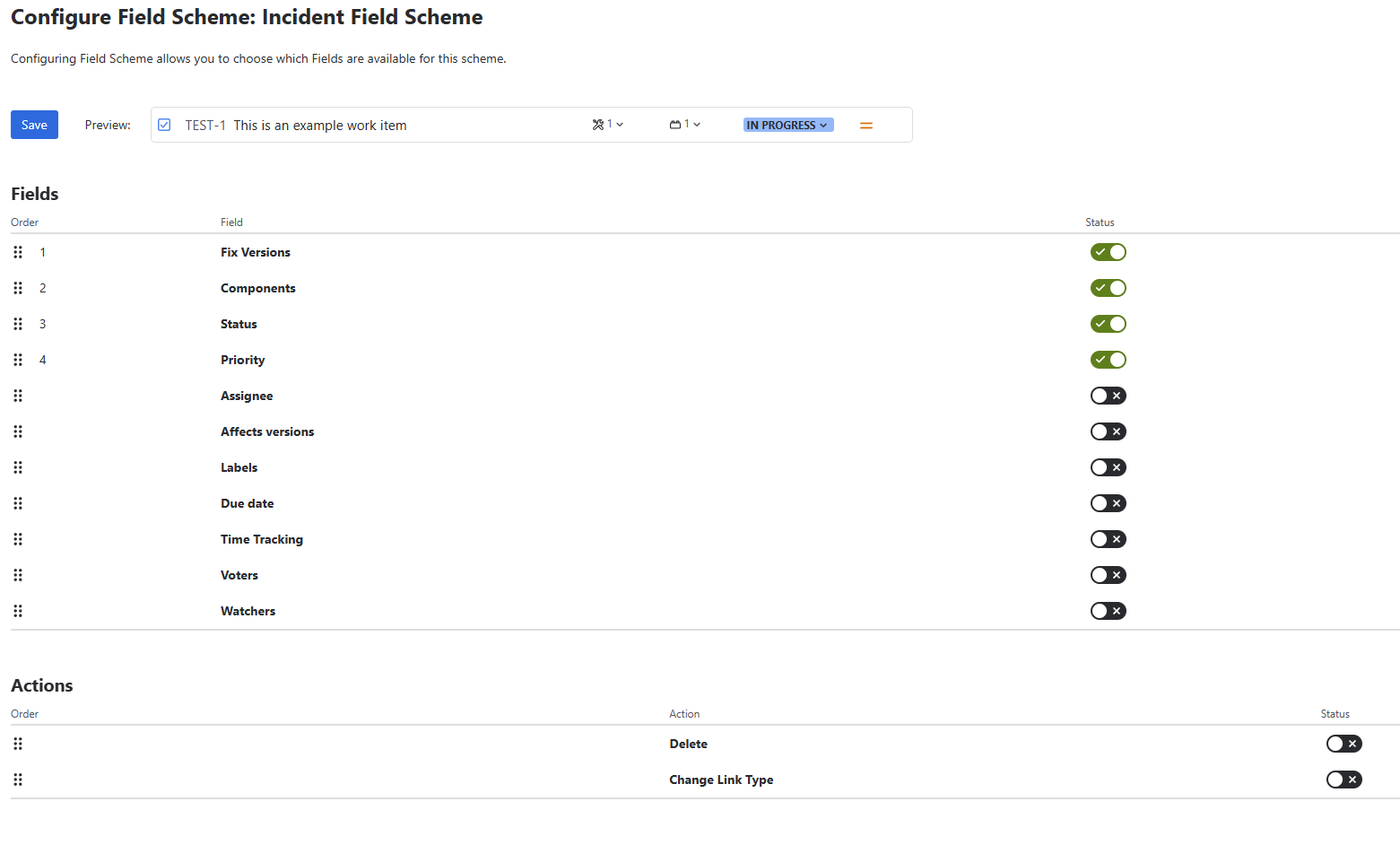
Opening a Field Scheme displays two main elements:
- Preview section
- Configuration table
Preview
At the top of the screen, a Preview section is displayed.
Purpose
The Preview shows how linked work items will appear in the Dependencies Panel using the current configuration.
Behavior
- Updates immediately when:
- fields are enabled or disabled
- field order is changed
- Reflects:
- selected fields
- field order
- layout density (single vs multi-row)
Benefits
- Allows validating configuration before saving
- Helps balance:
- readability
- amount of visible information
- Eliminates guesswork when adjusting layout
Below the preview, a table of available fields is displayed.
This table defines:
- which fields are visible
- their order in the UI
Order
- Defines the position of the field
- Supports drag and drop reordering
- Controls how fields appear in the Dependencies Panel
Field
- Displays the field name
Available fields include:
- Status
- Priority
- Assignee
- Fix Version
- Affects Version
- Components
- Labels
- Due Date
- Time Tracking
- Voters
- Watchers
Status
- Toggle to enable or disable the field
- Only enabled fields are displayed
Behavior
- Only enabled fields are shown in the panel
- Fields are displayed in the defined order
- Configuration affects all linked work items using this scheme
Field Behavior
Field Schemes define which fields are visible, but not all visible fields are editable.
Editability
- Some fields support direct interaction (inline or modal)
- Some fields are read-only and used for display only
- Editing capabilities depend on:
- field type
- configuration
- user permissions
Interaction Types
Depending on the field, interactions may include:
- Inline editing (e.g., Summary)
- Modal-based editing (e.g., Status, Priority)
- Toggle actions (e.g., Voters, Watchers)
Layout Considerations
- Fewer fields → more compact layout
- More fields → expanded layout (may span multiple rows)
Selecting all fields may result in a two-row layout per linked work item
Field selection should balance:
- readability
- information completeness
Save Behavior
- All changes require clicking Save
- Changes are applied immediately to:
- all Work Type Field Schemes referencing this scheme
- all spaces and work types using those configurations
Existing work items are not modified — only presentation changes.
How Field Schemes Are Used
Field Schemes are not assigned directly to spaces.
Instead:
- They are referenced by Work Type Field Schemes
- Those define how Field Schemes are applied per space and work type
→ See: Work Type Field Schemes
Interaction with Linked Work Item Details
Field Schemes define:
- what is visible
- how it is structured
They do not control:
- link validation
- link availability
These are handled by:
- Control Work Item Links
- Link Schemes
Permissions
Managing Field Schemes requires:
- Jira administrator or space administrator permissions
- Access to Depencency Governance administration