Levels Layout | Dependency Governance Documentation
Levels Layout documentation.
The Levels layout shows linked work items as a tree. It is the default layout of the Link Relation Visualizer.
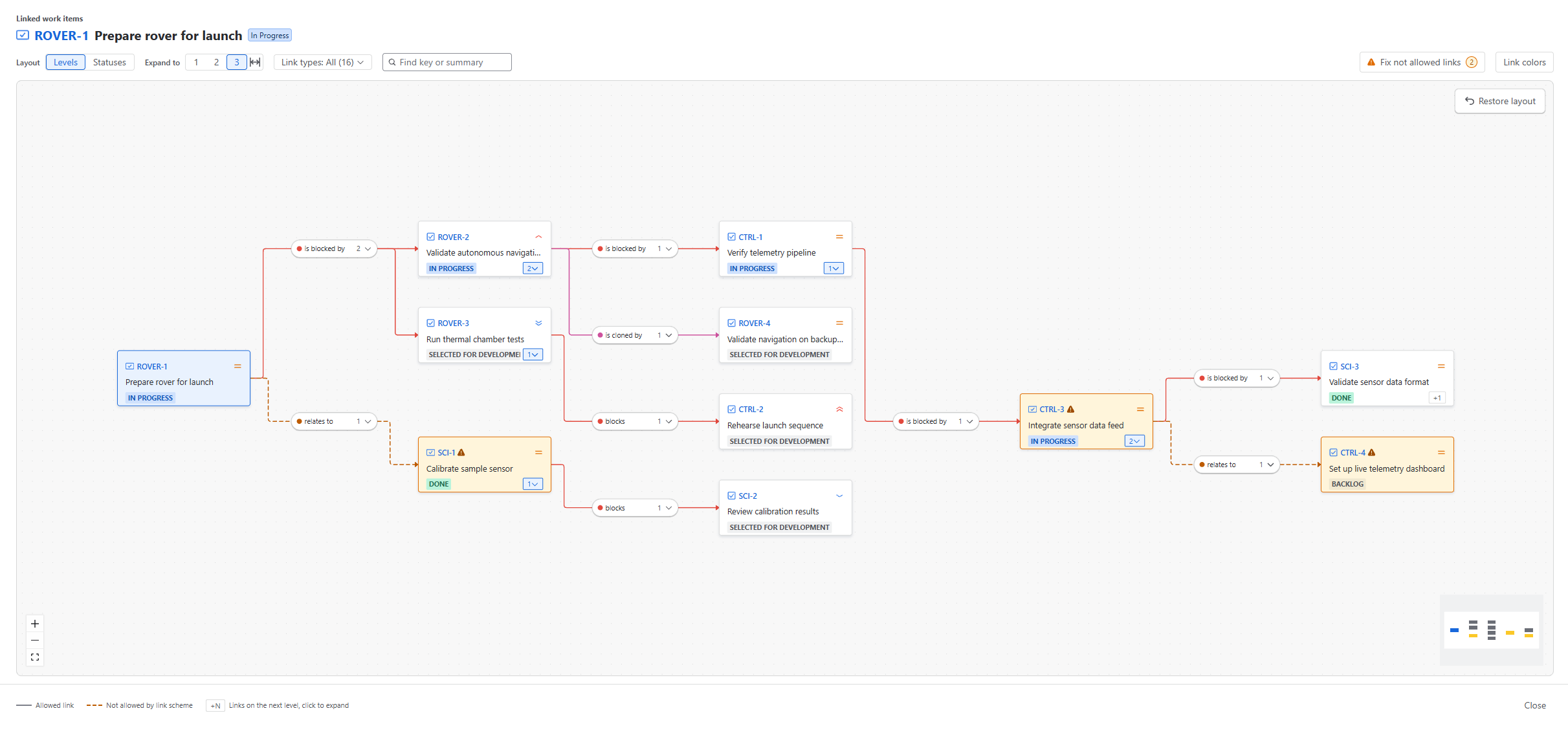
How Work Items Are Arranged
- The source work item is on the left. Linked work items are arranged in levels from left to right, up to three levels deep.
- Links are grouped by link type and direction (e.g. is blocked by, blocks).
- Each group is shown as a pill with the link type color and the number of work items in it.
- Click a group to collapse or expand it.
Loading Linked Work Items
Linked work items are loaded on demand. There is no upper limit on the number of links.
Expanding a Single Work Item
- A work item with links on the next level shows a +N chip.
- Click the chip to load and show those work items.
- Click it again to collapse them.
Expand To
The Expand to control in the toolbar sets how many levels are shown.
- 1, 2, 3 — show all work items up to the selected level and collapse everything below it.
- A level can be selected only when all work items on that level are loaded.
- Until then, the level number is disabled. Hover over it to see why.
- Level 1 is always available.
- Show all loaded (last button) — expands every work item that is already loaded, at any level.
- It does not load any new work items.
- Its tooltip shows how many work items are loaded.
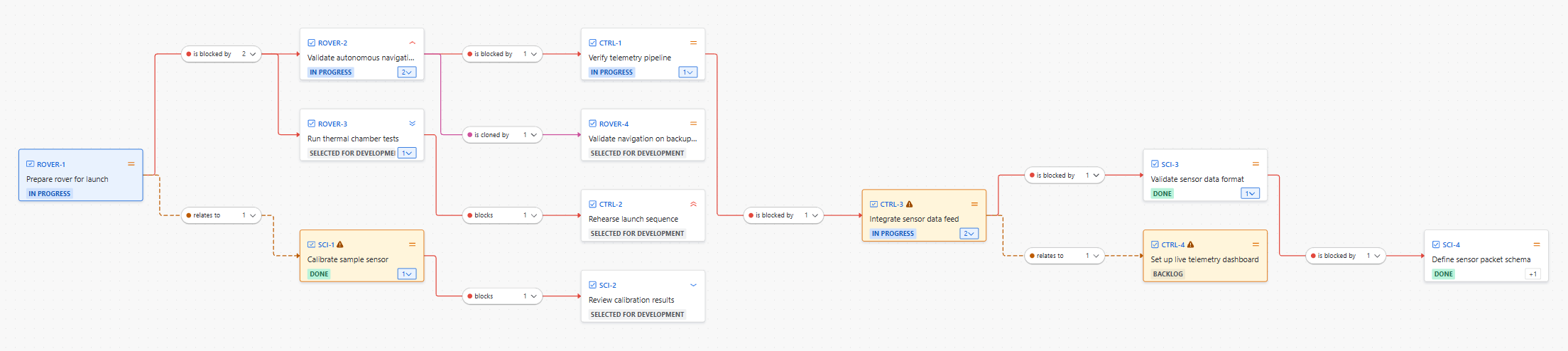 {.img-center .img-full}
Editing a Link from the Canvas
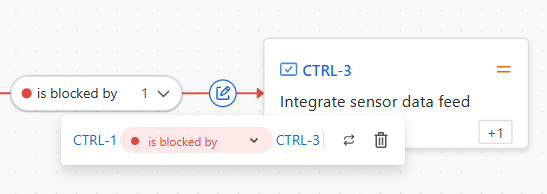
- Hover over the line between a group and a work item. The line gets thicker and an edit icon appears in its middle.
- Click the icon. A small Edit link dialog opens with the link type, Swap direction and Remove link.
After a link type change, the work item moves to the group of the new link type.
Fix Not Allowed Links Mode
The Fix not allowed links button in the toolbar helps you go through all not allowed links in the view.
- The button is shown only when the view contains at least one not allowed link. The number next to it is the count of these links.
- Click it to show only the not allowed links, together with the path from the source work item to each of them. Groups show X of N work items.
- A banner at the top of the canvas says how many not allowed links are shown.
- While the mode is on:
- adding new links is turned off
- all tooltip actions work, so you can change, swap or remove the not allowed links
- Click Done in the banner, or press Esc, to leave the mode.
- When the last not allowed link is fixed, the mode ends automatically.
The mode also opens directly from the ⚠ N not allowed chip in the Dependencies Panel.

Legend
- Solid line — allowed link
- Dashed orange line — link not allowed by the link scheme
- +N chip — links on the next level, click to expand