Link Relation Visualizer | Dependency Governance Documentation
Link Relation Visualizer documentation.
The Link Relation Visualizer shows the links of a work item as an interactive graph.
It helps you see whole dependency chains at a glance, find links that are not allowed by the link scheme, and fix them without leaving the view.
Opening the Visualizer
The Visualizer opens in a modal from:
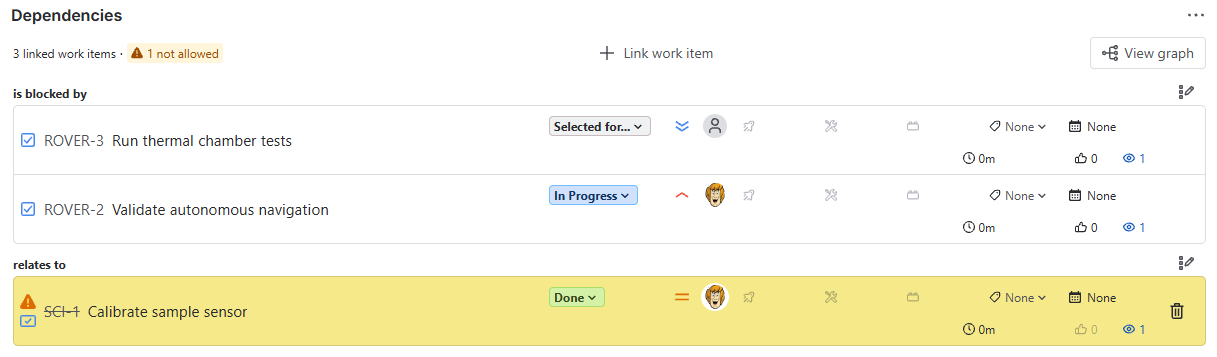
- the View graph button in the Dependencies Panel, at the right end of the row with + Link work item
- the ⚠ N not allowed chip in the same row, which opens the Visualizer directly in Fix not allowed links mode
- the Show linked work items action in any work item tooltip inside the Visualizer, which reopens the Visualizer with that work item as the source
The modal header shows the source work item: work type icon, key, summary and status.
Layouts
Use the Layout switch in the toolbar to choose how work items are arranged:
- Levels (default) — a tree from left to right, grouped by link type and direction
→ See: Levels Layout - Statuses — columns by status, with curved links between work items
→ See: Statuses Layout
Everything else on this page works the same in both layouts.
Toolbar
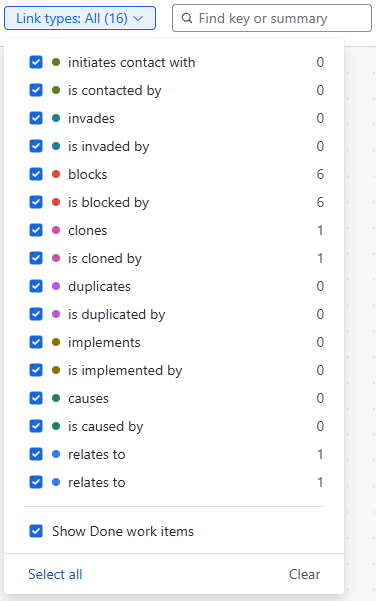
Link Types Filter
Choose which link types are shown.
- The filter lists the link types of all loaded links. Each direction is a separate entry (e.g. blocks and is blocked by).
- The list does not depend on Link Schemes: link types that are not allowed by the configuration are listed too, as long as such links exist.
- Each entry shows the number of links of that type.
- Show Done work items shows or hides work items in the Done status category.
- By default, all link types and all work items, including Done, are shown.
- The filter is independent of the global Show Work Items with Done Status Category setting, which applies only to the Work Items Searcher.
- Select all and Clear change all entries at once.
- Filters apply immediately and hide the branches below the filtered links.
Find
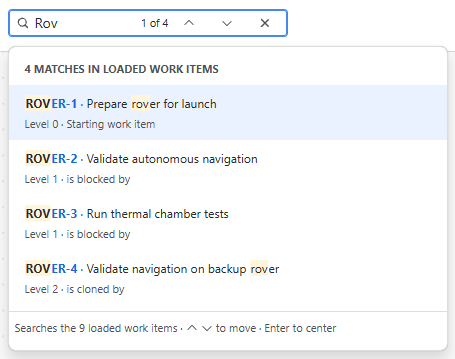
Find a work item in the graph by key or summary.
- Matches are listed as you type, with the level and the link they are reached by.
- Use ↑ ↓ to move through the list and Enter to center the view on a match.
- The counter shows which match is selected, e.g. 3 of 4.
- All work items loaded in the Visualizer are searched, including those hidden by the Link types filter.
- A match that is hidden by the filter is marked Hidden by filter in the list.
- Selecting a hidden match turns its link type back on in the Link types filter, shows the work item and centers the view on it.
Link Colors
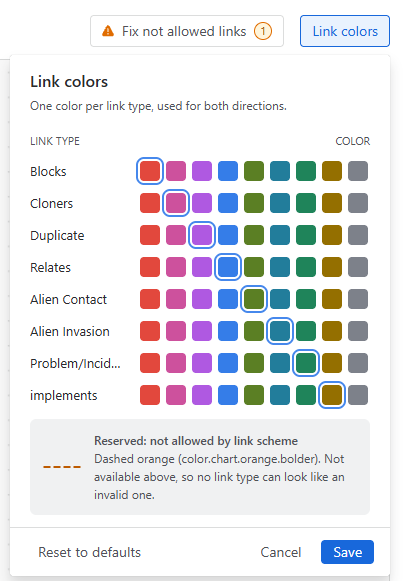
Each link type can have its own color.
- One color per link type, used for both directions.
- Choose from 9 colors.
- Colors are saved per user. They apply in all Visualizers you open, in both layouts, and do not affect other users.
- Reset to defaults restores the default colors for you only.
- The dashed orange line is reserved for links not allowed by the link scheme and cannot be chosen for a link type.
Canvas
- Zoom in, Zoom out and Fit view controls are in the bottom-left corner.
- The minimap in the bottom-right corner shows where you are in the graph.
- Restore layout puts all work items back in their default positions.
Work Item Tooltip
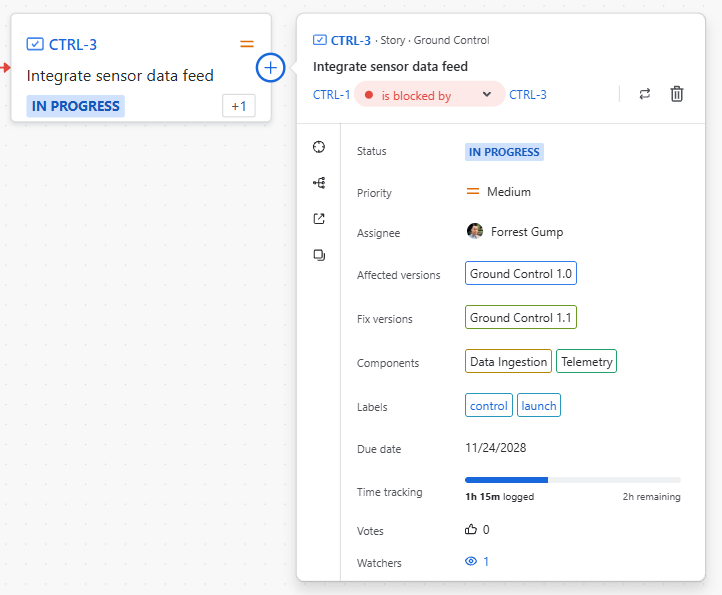
Hover over a work item card to open its tooltip.
Placement
- The tooltip opens to the right of the card, aligned with its top.
- If there is not enough room on the right, the view moves left so the tooltip fits.
- If there is not enough room below, the tooltip moves up.
Actions
The icons on the left of the tooltip are:
- Center view — centers the view on the work item
- Show linked work items — opens the Visualizer with this work item as the source
- Open in new tab — opens the work item in a new browser tab
- Copy work item URL — copies the work item link to the clipboard and confirms with URL copied
Relation Row
Under the header, the tooltip shows the link that connects the work item to its parent in the graph, e.g. LE-10 [clones] DEV-24.
- Keys are always shown in full. If the row does not fit on one line, it is shown on three lines.
- Next to the row are Swap direction and Remove link. See Managing Links.
Editing Fields
Fields in the tooltip can be edited inline, in the same place where they are shown, without opening a modal.
| Field | How it is edited |
|---|---|
| Status | List of available workflow transitions. The transition name is shown only when it differs from the target status. |
| Priority | List of priorities |
| Assignee | User search with Assign to me, Unassigned and Automatic |
| Due Date | Date field with a calendar |
| Voters, Watchers | One click adds or removes you. The icon is blue when you are included. |
| Affects Versions, Fix Versions | Multi-select. Lists all unreleased versions and the 5 latest released ones, with Show older versions. Typing searches all versions. |
| Components, Labels | Multi-select with search |
| Time Tracking | Log work form in place: time spent, remaining estimate, started date and time |
Only the fields listed above can be shown in the tooltip. They are the same fields that can be enabled in a Field Scheme.
Behavior
- Click a field to edit it. Enter or a selection saves the change, and Esc cancels.
- Lists show up to 6 options at a time and scroll for more.
- Searches return up to 20 results. If there are more, keep typing to narrow down.
- After Log work, an Undo option is shown for a few seconds.
- Fields you cannot edit are shown as read-only.
- The fields shown in the tooltip, and their order, come from the Field Scheme of the work item, the same as in the Dependencies Panel.
→ See: Field Schemes
Managing Links
All link changes in the Visualizer follow the same validation rules as the Dependencies Panel.
- Only link types allowed by the link schemes of both work items are offered.
- Link types that are not allowed are not listed.
- Changing and removing links is always available in the Visualizer. The Action Availability settings of Linked Work Item Details apply only to the Dependencies Panel.
Changing the Link Type
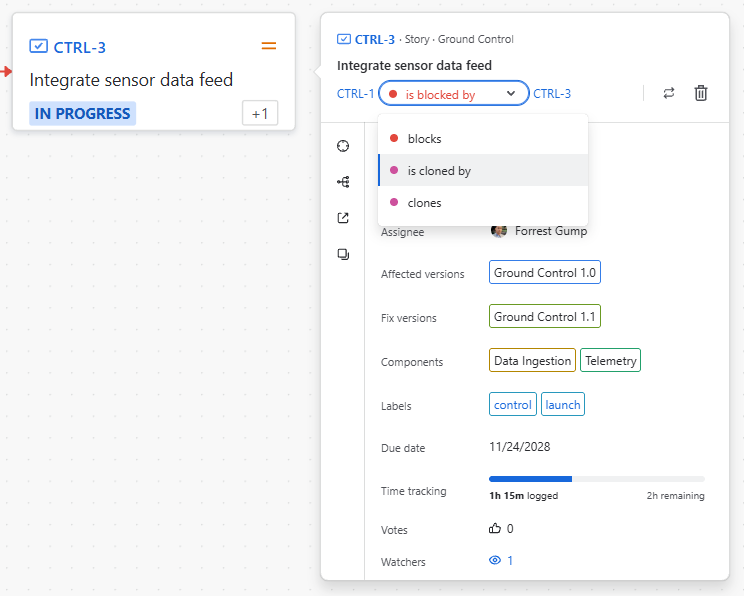
- Click the link type in the tooltip's relation row, or use the link on the canvas (see the page of each layout).
- Select a new link type. The current one is marked with a check.
The change is saved immediately.
Swapping the Direction
Click Swap direction to reverse the link, e.g. A blocks B becomes B blocks A. The link type stays the same.
- The action is available only when the reversed link is allowed by the link schemes.
- The change is saved immediately, and an Undo option is shown.
Removing a Link
- Click Remove link in the tooltip.
- The tooltip asks you to confirm and shows how many work items will leave the view with it.
- Click Remove.
After removal, a Link removed · Undo message is shown for 5 seconds. Undo restores the link.
Adding a Link
There are two ways to add a link from a work item card:
- Click the + on the right edge of the card.
- A Link [key] to dialog opens.
- Select the link type.
- Search for the work item by key or summary.
- Click Link.
- Drag the + onto another card to link the two work items.
Behavior
- The + appears when you hover over the card.
- Only work items the selected link type is allowed with are offered.
- Work items that are already linked are greyed out and marked Already linked.
- The view is centered on the new work item.
Not Allowed Links
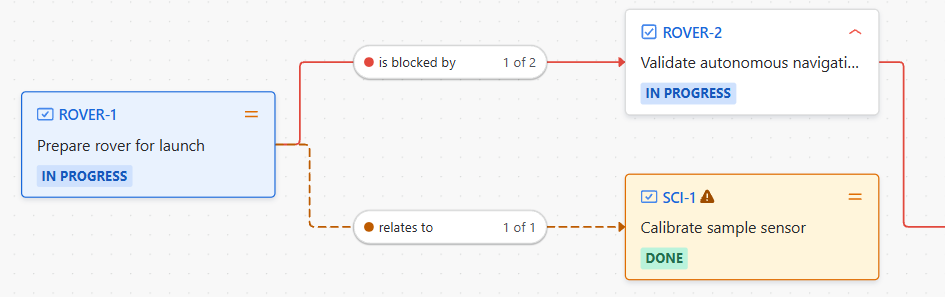
Links that do not comply with the current configuration are clearly marked:
- the link line is dashed orange
- the card shows a warning icon
- the tooltip's relation row shows a warning chip
The tooltip explains why the link is not allowed, e.g. which side of the link the link scheme rejects. The link type list is shown with only the allowed types, so the link can be fixed with one click.
To go through all not allowed links in the view, use Fix not allowed links mode. It is available only in the Levels layout.
→ See: Levels Layout
 {.img-center .img-large}
Permissions
- Viewing the Visualizer requires permission to browse the work items.
- Work items you don't have access to are not shown and not counted anywhere: not in the graph, the link counts, the +N chips, Find or the panel summary. The same as in Jira, you can't tell that such a link exists.
- Changing, swapping, removing and adding links requires the Link work items permission. Without it, these actions are not shown.
- Editing fields requires the Edit work items permission and is subject to Jira field configuration.
- Logging work requires the Work on work items permission.
Notes
- Changing a link type removes the old link and creates a new one, because Jira has no update for links. If saving fails midway, both links may remain. An error message is shown.
- Link colors are personal and are not shared with other users.
- The Visualizer does not change any configuration. Link rules are defined in Link Schemes and Work Type Link Schemes.