Restore Sprints | Sprint Organizer Documentation
Restore Sprints documentation.
Sprint Organizer allows deleted sprints to be restored directly from the Sprints page.
Restoring a sprint creates a new Jira sprint based on the metadata preserved by Deleted Sprint Tracking. The restored sprint receives a new sprint ID, but its original configuration can be recreated.
Before restoring the sprint, you can review and modify its configuration.
Restoring a Sprint
To restore a deleted sprint, find it on the Sprints page and select the Restore action.
Sprint Organizer pre-fills the restore form using the information stored for the deleted sprint, including:
- Board
- Sprint Name
- Start Date
- End Date
- Sprint Goal
These values can be changed before the new sprint is created.
This allows you to either recreate the sprint as closely as possible to the original or adjust its configuration when necessary.
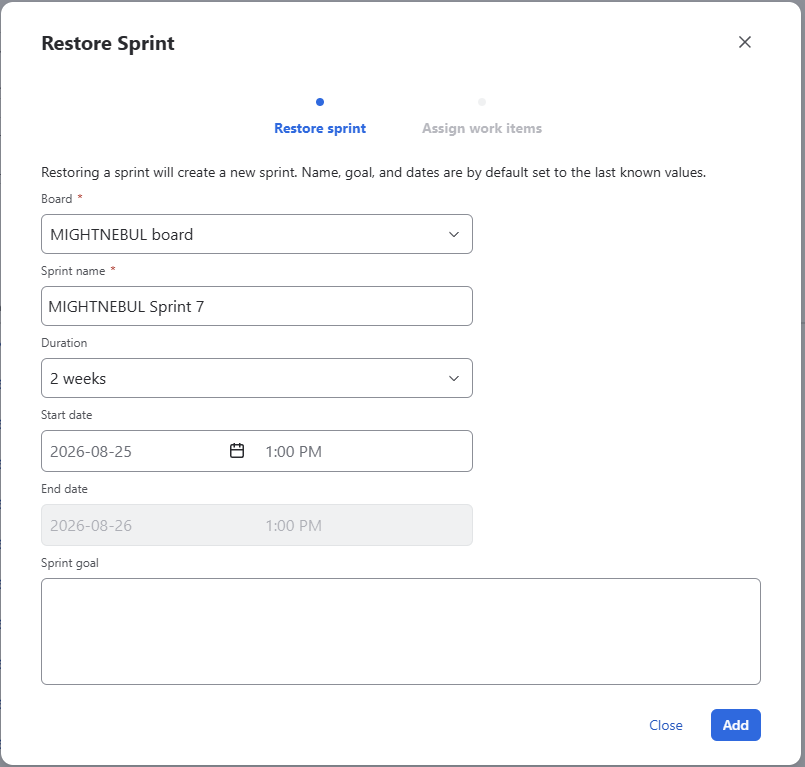
After confirming the form, Sprint Organizer creates a new sprint in Jira.
The restored sprint is a new Jira sprint and therefore receives a new sprint ID. The original deleted sprint and its ID cannot be recreated.
Restoring Work Items
Creating a new sprint does not automatically move work items from the original sprint into the restored sprint.
After the sprint has been successfully created, Sprint Organizer checks whether it has information about work items that previously belonged to the original sprint.
If such work items are available, they are displayed in the Restore Sprint dialog and can be added to the newly created sprint.
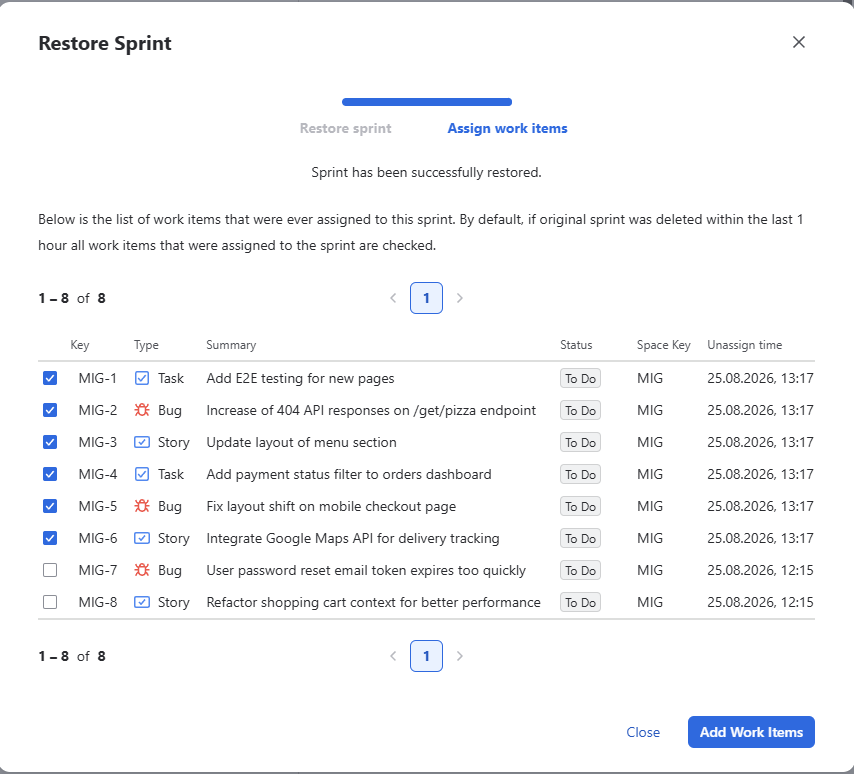
The list provides information about the previously associated work items, including their key, type, summary, status, space, and the date when they were removed from the original sprint.
Work Item Selection
By default, all work items that were assigned to the original sprint within the last 1 hour are selected.
This helps restore the sprint's most recent issue composition while reducing the risk of automatically selecting work items that had been intentionally moved out of the sprint earlier.
Before adding work items to the restored sprint, you can:
- Review the detected work items
- Deselect automatically selected work items
- Select additional work items that previously belonged to the sprint
- Add only the selected work items to the restored sprint
Work items are added only after selecting Add Work Items.
You can also close the dialog without adding any work items.
Important: Do not close the Restore Sprint dialog while work items are being added. Wait until the operation is complete to ensure all selected work items are successfully added to the restored sprint.
Important Considerations
Restoring a sprint does not restore the original Jira entity.
Instead, Sprint Organizer uses the historical information it has preserved to create a new sprint with the same or modified configuration.
As a result:
- The restored sprint has a new sprint ID
- Original sprint metadata is used to pre-fill the restore form
- Sprint details can be modified before restoration
- Work items are not automatically added to the restored sprint
- Only work itemspreviously detected as belonging to the original sprint can be offered for restoration
- Work items removed within the last 1 hour are selected by default
- Work item selection can be changed before adding work items
- Adding work items to the restored sprint may affect their current sprint assignment in Jira