Creating Linked Work Items | Dependency Governance Documentation
Creating Linked Work Items documentation.
The Dependencies Panel allows creating a new work item and linking it in a single step.
This enables fast creation of related work without leaving the current work item.
Purpose
Creating linked work items directly from the panel allows you to:
- Quickly create dependent work
- Maintain context while working on an work item
- Avoid switching between screens
- Ensure links are created immediately and correctly
How It Works
From the Dependencies Panel:
- Click the Create Linked Work Item action
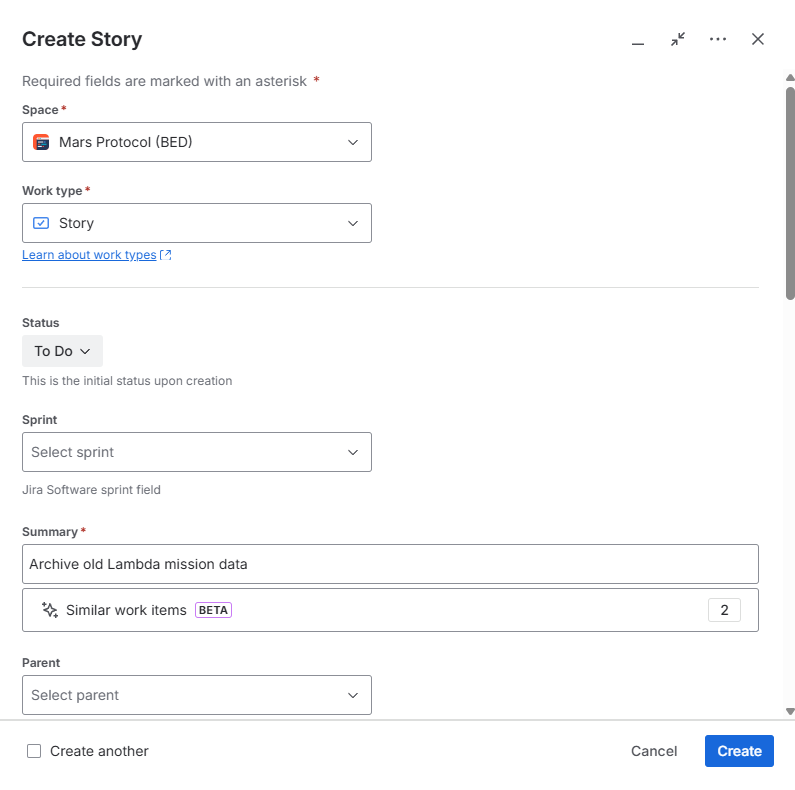
- A creation form is opened
- Fill in required fields
- Confirm creation
The new work item is:
- created in Jira
- automatically linked to the current work item
Link Type Selection
Before creating the work item, a link type must be selected.
Behavior
- Only allowed link types are available
- Available options depend on:
- current work item configuration
- target work item configuration
- Default link type may be preselected

Work Item Creation
The creation form allows entering standard Jira fields, such as:
- Work Type
- Summary
- Description
- Other required fields
Behavior
- Available fields depend on Jira configuration
- Required fields must be completed
- Work Item is created according to Jira rules
Validation Behavior
Link validation is applied during creation.
Rules
- Selected link type must be allowed for:
- source work item
- newly created work item (based on its work type)
Result
- If validation passes → work item is created and linked
- If validation fails → operation is blocked
UX Notes
- Creation happens in a modal or panel overlay
- User remains in context of the current work item
- New work item appears immediately in the Dependencies Panel
- No need to manually link after creation