Orphan Sprints | Sprint Organizer Documentation
Orphan Sprints documentation.
The Orphan Sprints page helps identify and manage sprints that are no longer associated with an existing Jira board.
A sprint is considered orphaned when:
- its origin board no longer exists, and
- the sprint is not available through any other board — none of its work item is accessible from another board
Orphan sprints can remain in Jira after their original board or space containing it has been deleted.
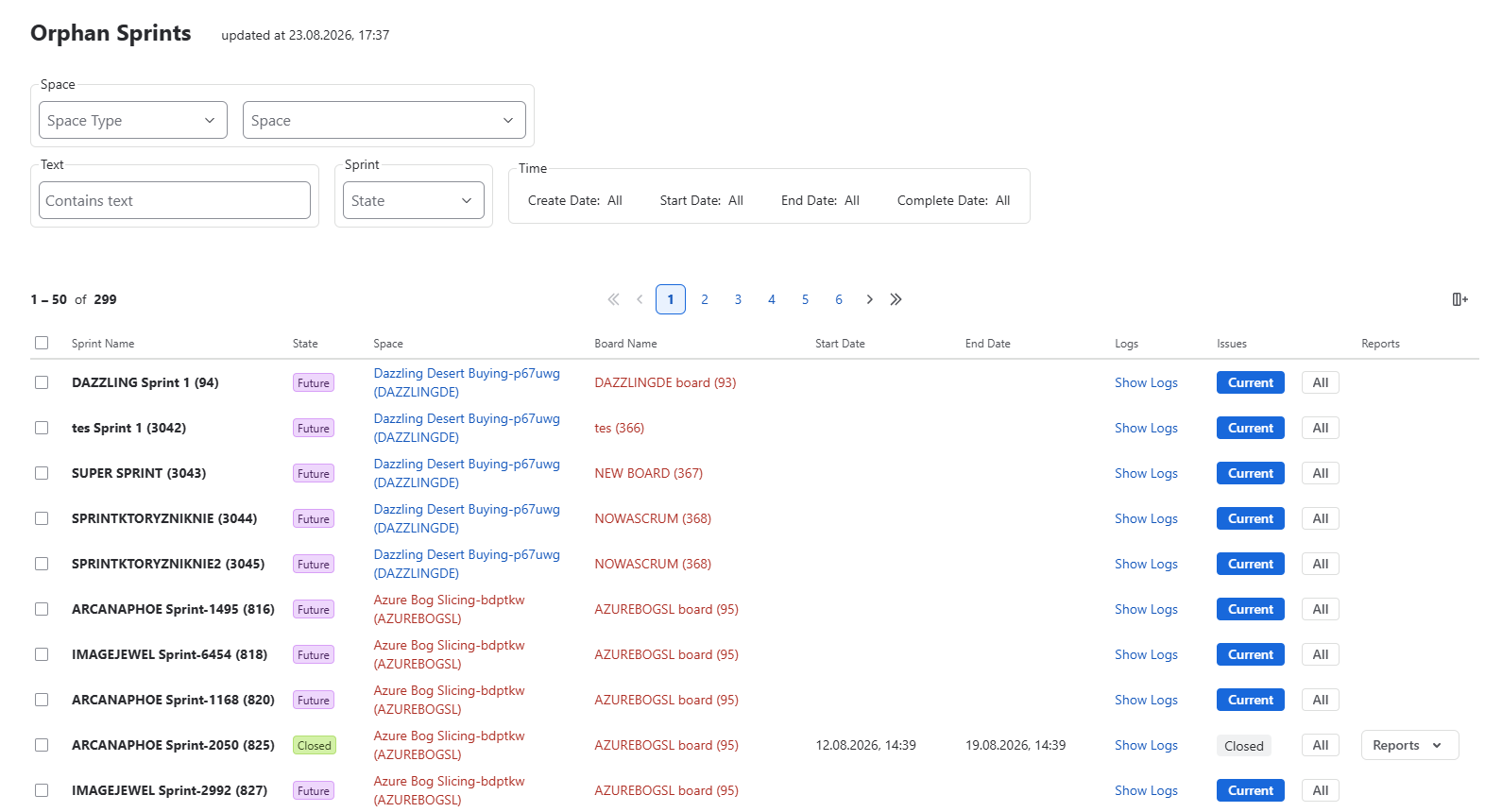
Finding Orphan Sprints
Use the filters at the top of the page to narrow down the list by:
- Space type
- Space
- Sprint name or other text
- Sprint state
- Create date
- Start date
- End date
- Complete date
The page shows when the orphan sprint data was last updated.
For each sprint, the list provides information such as:
- Sprint name and ID
- State
- Space
- Original board
- Start and end dates
- Logs
- Work Items
- Available reports
Deleted Board and Space Names
By default, names of deleted boards and spaces are not displayed.
Their names can be shown only when the corresponding override is enabled in Permissions.
Sprint Organizer can retain these names only for boards and spaces that were available after the app was installed. If a board or space was deleted before Sprint Organizer was installed, its name may not be available. The orphan sprint can still be detected and displayed, but the deleted board or space may be shown without a name.
Detection limitation: Orphan sprints from boards deleted before Sprint Organizer was installed may be missed if there is no existing board with an ID greater than the orphan sprint's origin board ID. This limitation affects orphan detection only in this specific case.
Work Items
Use the options in the Work Items column to inspect work items associated with a sprint.
- Current — shows work items currently assigned to the sprint
- All — shows all work items associated with the sprint
This can help verify the sprint contents before assigning it to another board or deleting it.
Assigning a New Board
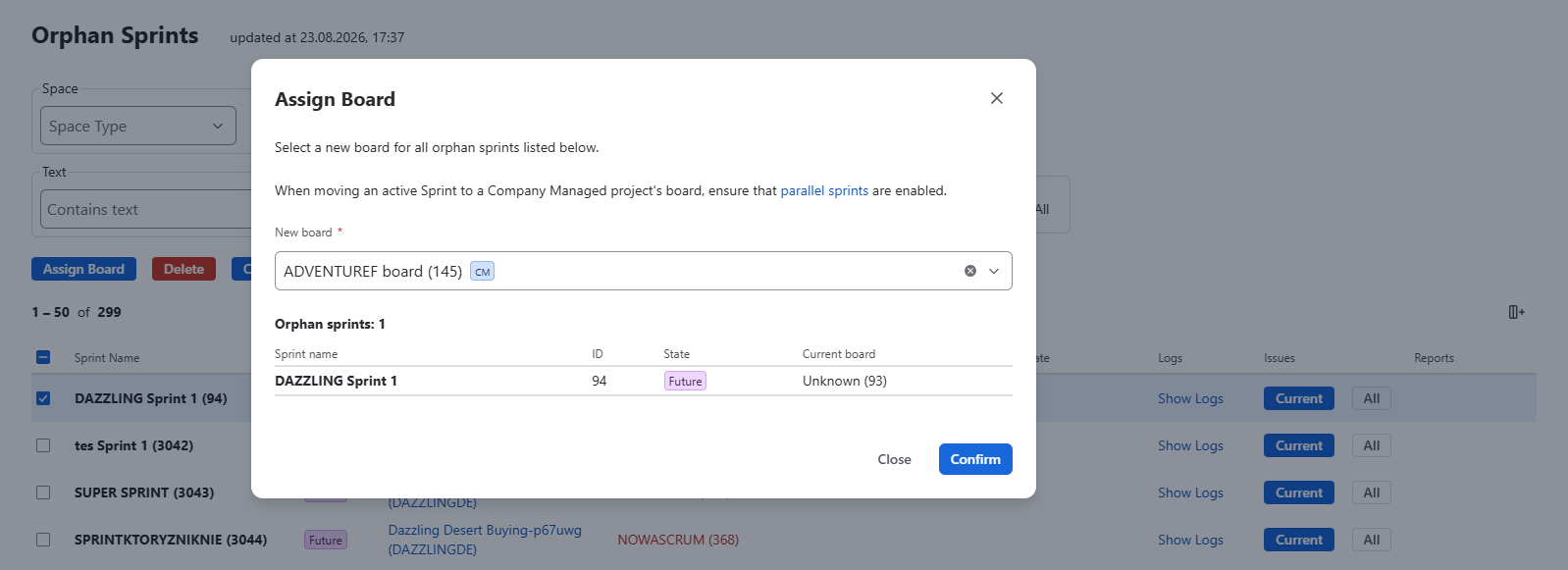
Select one or more orphan sprints and click Assign Board to associate them with an existing board.
In the Assign Board dialog:
- Select the new board
- Review the selected orphan sprints
- Click Confirm
The selected board becomes the new board for those sprints.
When assigning an active sprint to a Company Managed space's board, ensure that parallel sprints are enabled for that board.
Deleting Orphan Sprints
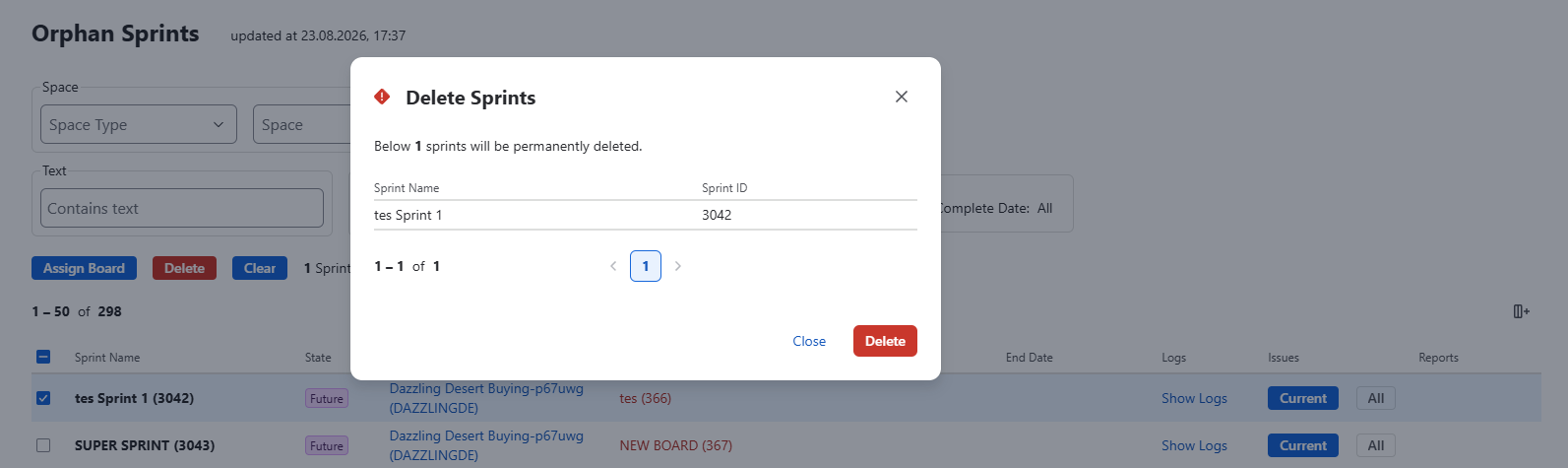
Orphan sprints that are no longer needed can be permanently removed.
- Select one or more sprints
- Click Delete
- Review the sprints listed in the confirmation dialog
- Click Delete to confirm
Deleting a sprint is permanent. Review the selected sprints and their work items before confirming the operation.
Logs and Reports
Use Show Logs to review recorded changes related to a sprint.
When reports are available, use the Reports menu to open reporting data for the selected sprint.