Permissions | Sprint Organizer Documentation
Permissions documentation.
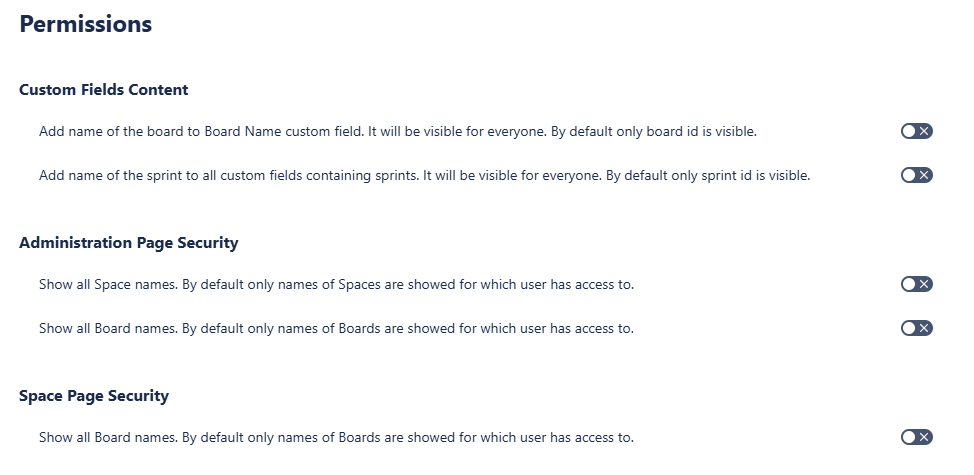
Sprint Organizer provides permission settings that control whether Sprint Names, Board Names, and Space Names can be stored or displayed by the application.
By default, Sprint Organizer follows Jira permissions and avoids exposing names of resources that a user may not be authorized to access. For this reason, all permission override and name storage settings are disabled by default and must be explicitly enabled by an administrator when required.
Permission settings are divided into:
- Custom Fields Content
- Administration Page Security
- Space Page Security
Custom Fields Content
The Custom Fields Content settings control whether sprint and board names are stored directly in Sprint Reporting custom fields.
Available settings:
- Add name of the board to Board Name custom field
- Add name of the sprint to all custom fields containing sprints
By default, names are not stored because Jira text-based custom fields cannot dynamically restrict individual values based on the permissions of the user viewing them.
Enabling these settings allows names to be stored in the corresponding custom fields, including names of resources that may be private, inaccessible, or deleted.
This makes the names available anywhere these custom fields are used, including:
- JQL
- Filters
- Dashboards
- Reports
- Automations
Updating Custom Fields
Changes to Custom Fields Content are not applied immediately to existing work items.
After changing a setting, select Update Custom Fields to start updating the Sprint Reporting fields on existing work items.
The update runs in the background and may take some time depending on the number of affected work items.
You do not need to keep the Permissions page or Sprint Organizer open while the update is running. You can safely navigate away, close the page, or close the application. The update will continue in the background.
Until the update is complete, some work items may temporarily contain values based on the previous configuration.

Administration Page Security
The Administration Page Security settings control how space and board names are displayed within Sprint Organizer's Jira administration pages.
Available settings:
- Show all Space names
- Show all Board names
When an override is disabled, Sprint Organizer follows the current user's Jira permissions when displaying names.
When enabled, Sprint Organizer can use stored metadata to display names even when the corresponding space or board is not accessible to the current user through Jira.
This may include names of private, inaccessible, or deleted spaces and boards.
Changes to Administration Page Security take effect immediately because these settings control data displayed directly by Sprint Organizer.
Space Page Security
The Space Page Security settings control how board names are displayed on Sprint Organizer pages available within individual Jira spaces.
Available setting:
- Show all Board names
When disabled, board names are displayed according to the current user's Jira permissions.
When enabled, Sprint Organizer can use stored board metadata to display names that would otherwise be unavailable, including names of private, inaccessible, or deleted boards.
Changes to Space Page Security take effect immediately because these settings control data displayed directly by Sprint Organizer.
Permission Override Considerations
Permission overrides should be enabled only when displaying stored resource names is appropriate for users who have access to the corresponding Sprint Organizer pages.
Enabling an override does not grant access to the underlying Jira space, board, sprint, or work item. It only allows Sprint Organizer to display names stored by the application.
Similarly, enabling names in Sprint Reporting custom fields does not change Jira permissions. However, because those names are stored as custom field values, they may be visible to users who can access the corresponding work items and fields.
Applying Changes
Settings under Administration Page Security and Space Page Security take effect immediately.
Changes to Custom Fields Content require an additional update:
- Change the required Custom Fields Content Settings
- Select Update Custom Fields
- Sprint Organizer starts updating affected work items in the background
- You can safely leave the page or close Sprint Organizer while the update is running
- The new configuration is applied progressively until all affected work items have been processed
The time required depends on the number of work items that need to be updated.