Boards Configuration | Sprint Organizer Documentation
Boards Configuration documentation.
Boards Configuration is available only when the app is running with an inactive license (Free Edition).
The page allows administrators to choose which Scrum boards should be tracked by Sprint Organizer. Only the selected boards are included in sprint tracking, reporting, JQL fields, and audit logs.
For reliable tracking, all Scrum boards belonging to a selected space should be selected, and each selected board should contain only work items from its associated space.
When the app is activated with a paid license, this configuration is no longer required because all accessible Scrum boards are tracked automatically.
Free vs Paid Edition
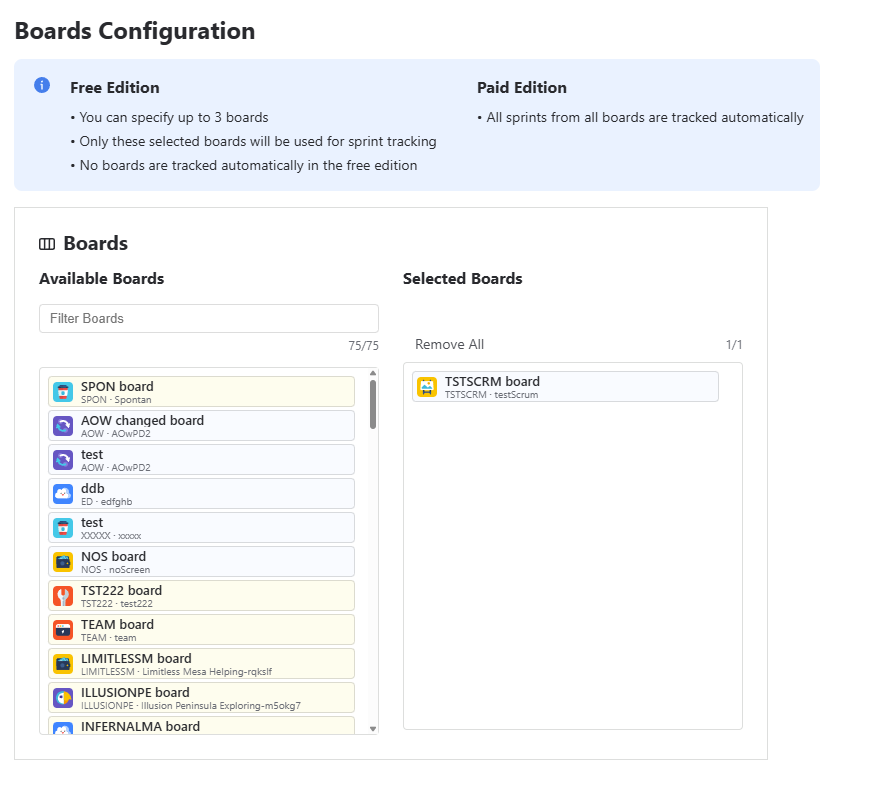
The information panel at the top of the page summarizes the differences between editions.
Free Edition
- You can select up to 3 boards
- Only the selected boards are synchronized and tracked
- Boards that are not selected are ignored by Sprint Organizer
Paid Edition
- All accessible Scrum boards are tracked automatically
- Manual board selection is not required
Available Boards
Displays all Scrum boards available in Jira.
You can:
- Search boards using the filter field
- Move boards to the selected list
- Remove previously selected boards
Boards associated with team-managed spaces are highlighted in yellow, making them easy to distinguish from boards belonging to company-managed spaces.
Selected Boards
Displays boards currently tracked by Sprint Organizer.
The counter above the list shows how many boards are currently selected and how many are allowed by the license.
Saving Configuration
After changing the board selection, save the configuration.
Sprint Organizer updates its internal configuration and begins synchronizing sprint data only for the selected boards.
Depending on the number of boards and sprints, saving may take several minutes.
During this process a progress dialog is displayed.
Do not close or refresh the browser tab while the operation is running.
The dialog displays:
- The current configuration step
- The operation currently being performed
- Overall progress
Once the process finishes, the selected boards become available throughout Sprint Organizer, including dashboards, reports, custom fields, JQL fields, and audit logs.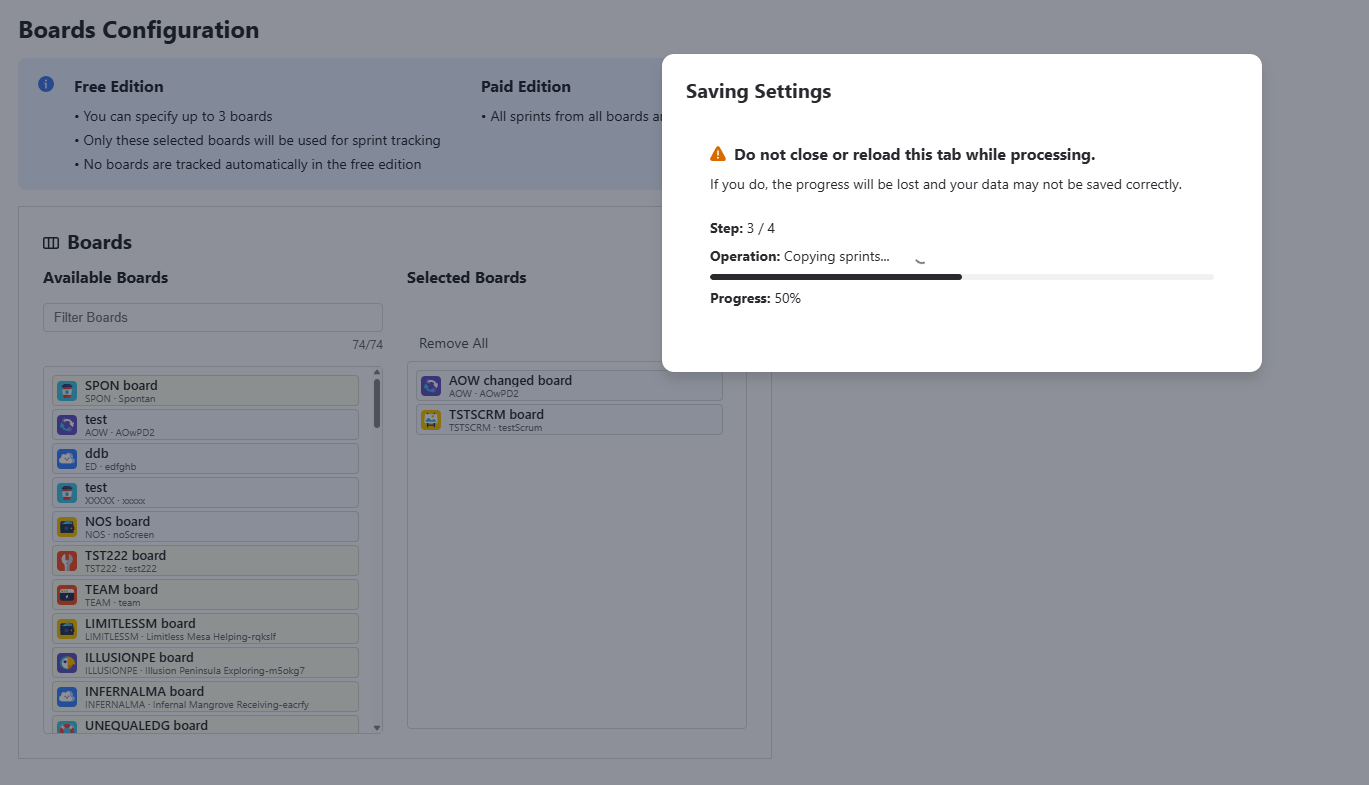
Removing Boards
When you remove a board from the Selected Boards list and save the configuration, Sprint Organizer asks for confirmation before disabling sprint tracking for that board.
Removing a board permanently deletes all tracked data associated with it, including:
- Sprint history
- Audit log entries
- Sprint Organizer custom field values
- JQL field values related to sprints from that board
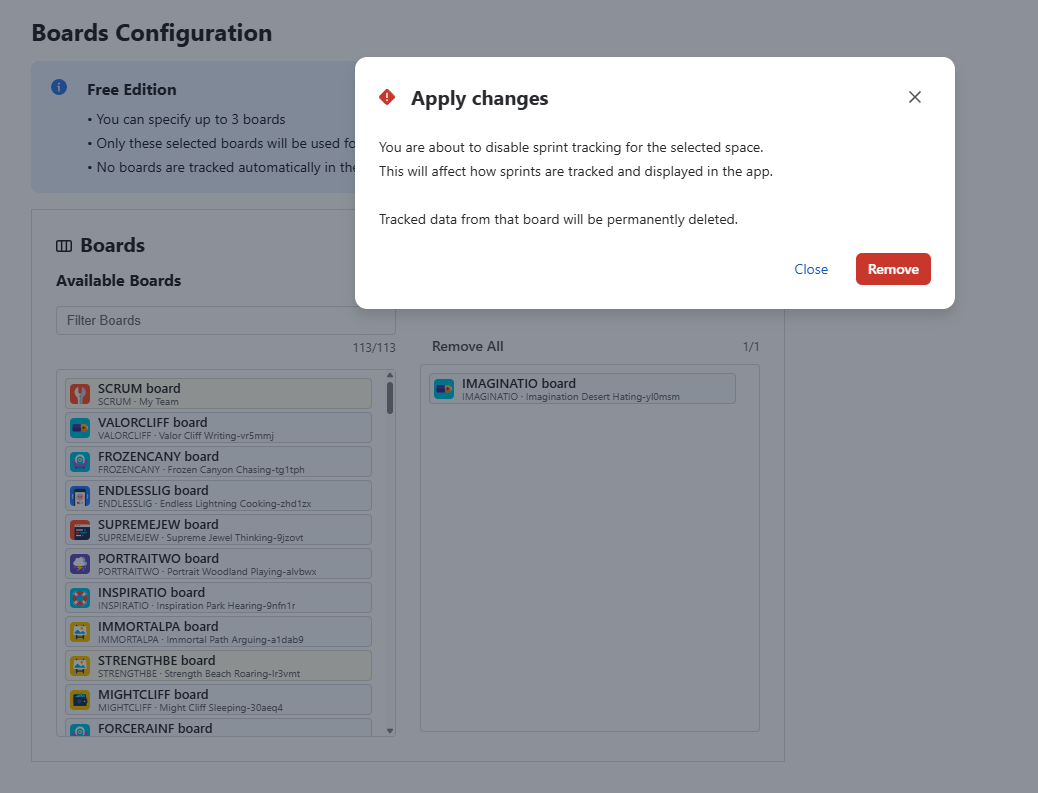
Warning
This action cannot be undone. If the board is added again later, Sprint Organizer will start tracking it from that point forward and previously deleted tracking data will not be restored.