Orphan Sprints | Sprint Organizer Documentation
Orphan Sprints documentation.
Orphan Sprints helps identify sprints whose original Scrum board no longer exists and which are no longer available through any other Jira board.
These sprints may still exist in Jira and contain work items, but without an accessible board they can be difficult to find and manage using standard Jira views.
Sprint Organizer detects these sprints and makes them available from the Orphan Sprints page.
How Orphan Sprints Are Detected
A sprint is considered orphaned when:
- Its original board no longer exists, and
- The sprint cannot be found through any other existing board
Sprint Organizer uses synchronized board, sprint, and work item information to identify these cases.
Orphan detection runs automatically in the background.
Space Orphan Sprints
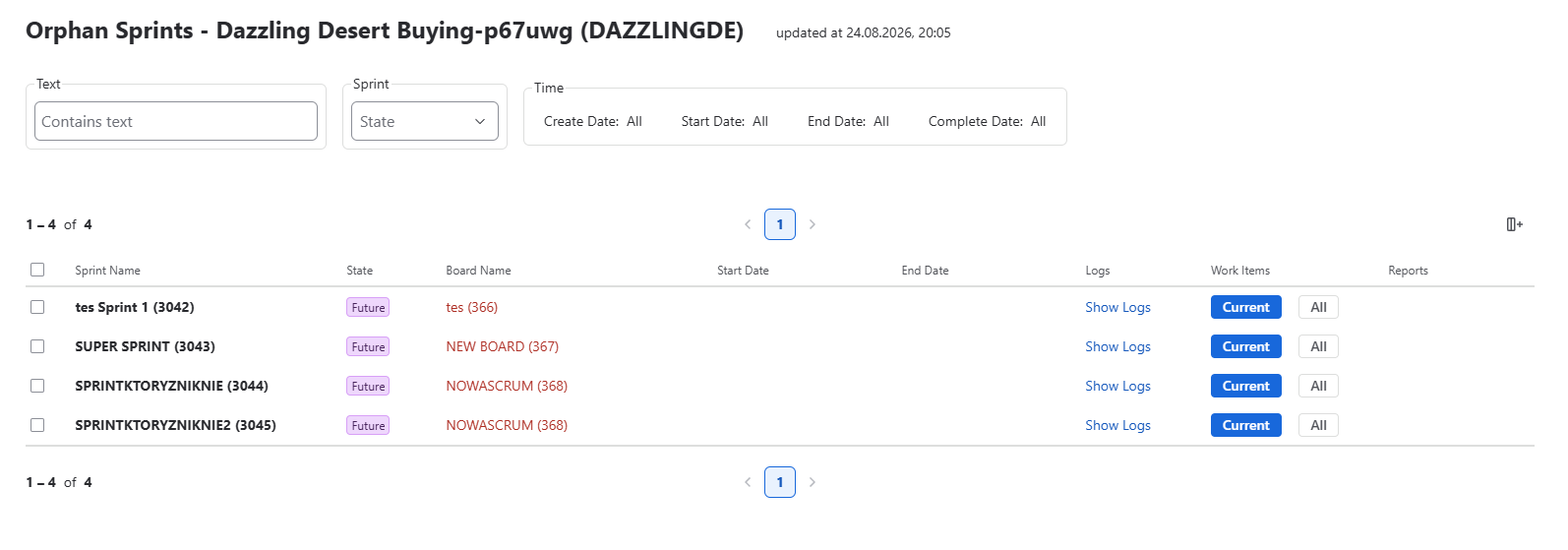
The Orphan Sprints page available within a Jira Space displays orphaned sprints associated with that Space.
Only orphaned sprints for which Sprint Organizer knows the associated Space can be displayed on this page.
Space information is collected after Sprint Organizer is installed. As a result, orphaned sprints whose original board or Space was already unavailable before installation may not appear on the Space-level Orphan Sprints page because their Space association cannot be determined.
The administration-level Orphan Sprints view can still be used to detect orphaned sprints for which the original Space is unknown.
Viewing Orphan Sprints
The Orphan Sprints page provides information about detected orphaned sprints, including:
- Sprint Name
- Sprint State
- Original Board
- Start Date
- End Date
- Audit Logs
- Current Work Items
- All Work Items previously associated with the sprint
Available filters can be used to narrow the list by sprint state, text, creation date, start date, end date, or completion date.
Board and Space Names
Sprint Organizer follows Jira permissions when displaying the names of boards and Spaces associated with orphaned sprints.
If the corresponding permission override settings are enabled, Sprint Organizer can display previously stored Board and Space names even when those resources have been deleted or are no longer accessible to the current user.
Names can only be displayed if they were previously known to Sprint Organizer. This generally means that the board or Space must have existed and been synchronized after Sprint Organizer was installed.
Boards or Spaces deleted before installation may therefore appear without a name even when permission overrides are enabled.
To learn more, see Permissions.
Limitations
Orphan Sprint detection has several important limitations:
- A sprint is considered orphaned only when its original board no longer exists and the sprint is not available through another existing board
- Space-level Orphan Sprints require Sprint Organizer to know the Space associated with the sprint
- Board and Space names deleted before Sprint Organizer installation may not be available.
- Permission override settings can display stored names but cannot recover names that were never known to Sprint Organizer
- Historical information available for an orphaned sprint depends on data previously synchronized by Sprint Organizer
Assigning a New Board
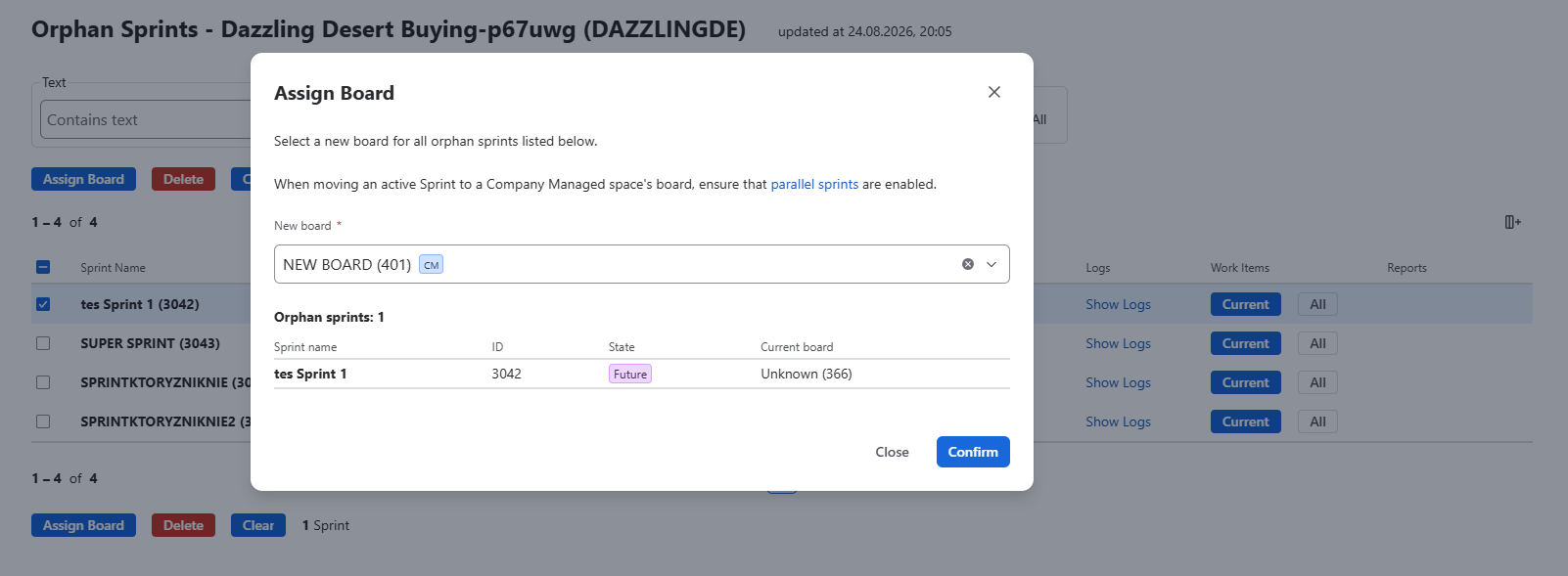
Select one or more orphan sprints and click Assign Board to associate them with an existing board.
In the Assign Board dialog:
- Select the new board
- Review the selected orphan sprints
- Click Confirm
The selected board becomes the new board for those sprints.
When assigning an active sprint to a Company Managed space's board, ensure that parallel sprints are enabled for that board.
Deleting Orphan Sprints
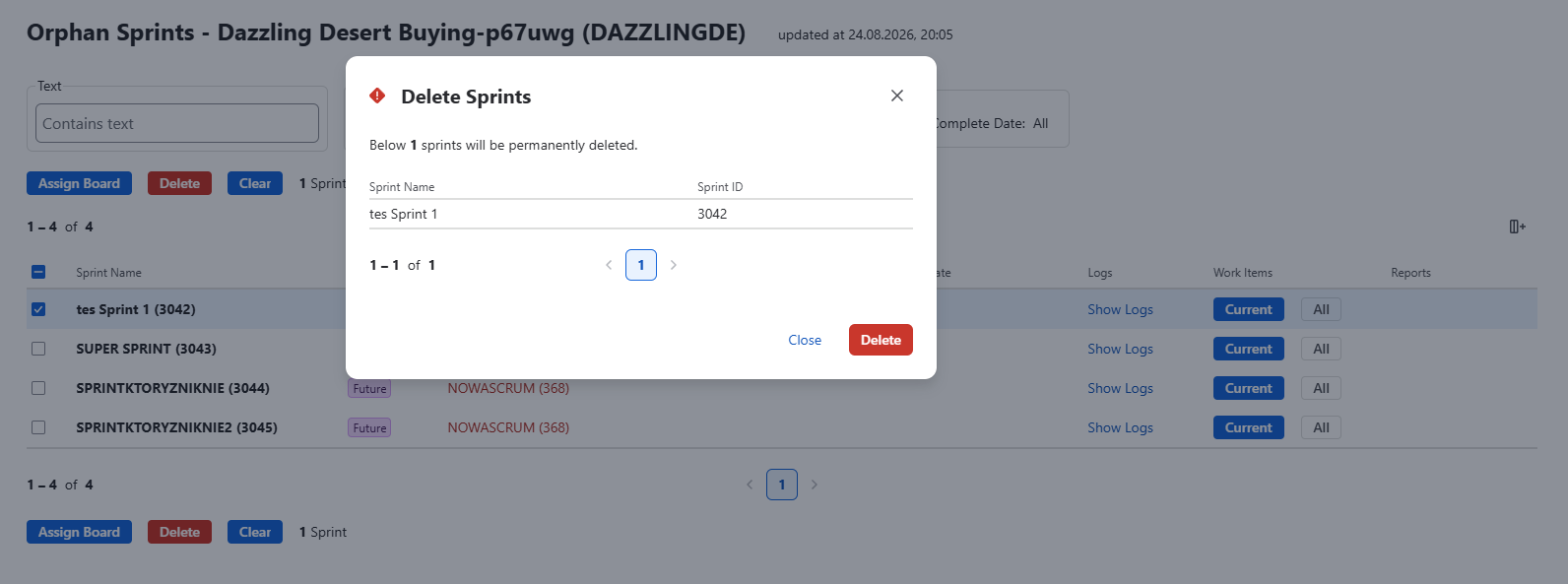
Orphan sprints that are no longer needed can be permanently removed.
- Select one or more sprints
- Click Delete
- Review the sprints listed in the confirmation dialog
- Click Delete to confirm
Deleting a sprint is permanent. Review the selected sprints and their work items before confirming the operation.