Linked Work Items Validator | Dependency Governance Documentation
Linked Work Items Validator documentation.
The Linked Work Items validator is a Jira workflow rule that checks work item links when a transition is performed.
If the work item does not meet the configured conditions, the transition is blocked and the user sees an error message.
Purpose
The validator is designed to:
- Stop work items from moving forward while they have invalid links
- Require specific dependencies before a transition (e.g. a linked Bug before moving to Ready for Release)
- Limit how many links of a given kind a work item can have at a given stage
- Enforce link rules at key workflow steps, not only at the moment links are created
Where It Is Available
The validator is available in the Jira workflow editor:
- Open the workflow and select a transition
- Add a rule and choose Validate details → Linked Work Items Validator
- Configure the Validation mode and save the workflow
Each transition can use its own validator configuration.
ㅤ
Validation Modes
The validator supports two modes:
| Mode | What it checks |
|---|---|
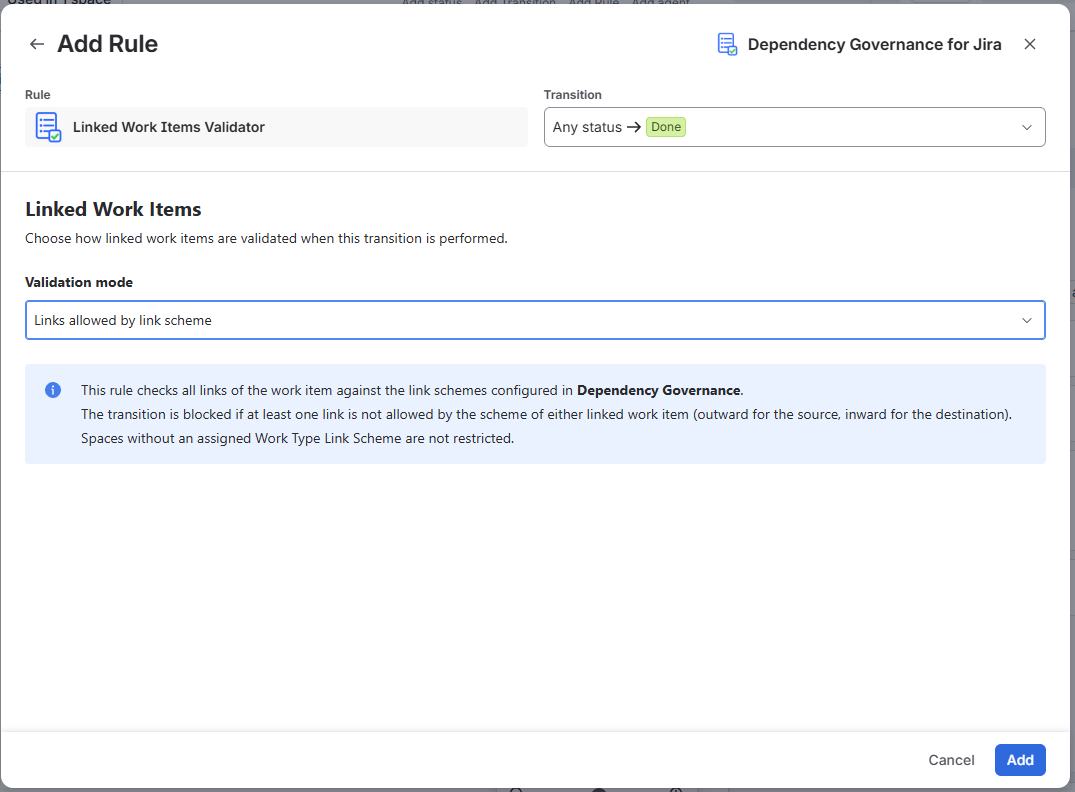
| Links allowed by link scheme | All links of the work item comply with the configured Link Schemes |
| Number of matching links | The number of links matching selected criteria is within a required range |
| ㅤ |
Mode: Links Allowed by Link Scheme
Checks all links of the work item against the link rules configured in Dependency Governance.
Behavior
- Every link of the work item is validated using the same rules as everywhere else in the app:
- the source work item's Link Scheme must allow the link outward
- the destination work item's Link Scheme must allow the link inward
- If at least one link is not allowed → the transition is blocked
- Spaces without an assigned Work Type Link Scheme are not restricted
- No additional settings are required
Typical Use
- Block closing or releasing work items that still have invalid links
- Make sure links created before rules were introduced are cleaned up at a defined workflow step
→ See: Control Work Item Links
Mode: Number of Matching Links
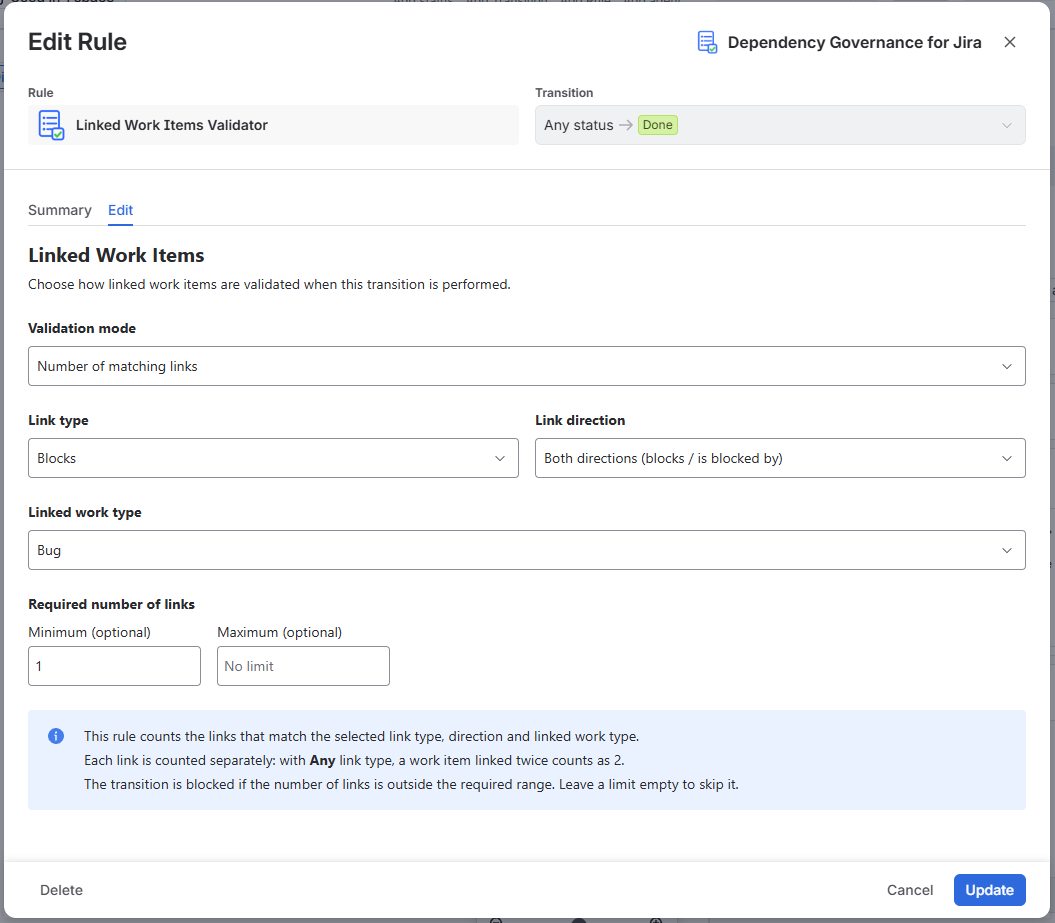
Counts the links that match the selected criteria and checks whether the number is within the required range.
Settings
Link type
- A specific link type (e.g. Blocks) or Any
Link direction
- Both – links in either direction (e.g. blocks and is blocked by)
- Outward – only links in the outward direction (e.g. blocks)
- Inward – only links in the inward direction (e.g. is blocked by)
Linked work type
- A specific work type on the other side of the link (e.g. Bug) or Any
Required number of links
- Minimum – the lowest allowed number of matching links
- Maximum – the highest allowed number of matching links
- Leave a field empty to skip that limit
How Links Are Counted
- The validator counts links, not unique work items
- With Any link type, a work item linked twice (e.g. with Blocks and Relates) counts as 2
- With a specific link type, only links of that type are counted
Behavior
- If the number of matching links is outside the required range → the transition is blocked
- If it is within the range → the transition can proceed
Examples
| Goal | Configuration |
|---|---|
| Require at least one blocking Bug | Link type: Blocks, Direction: Both, Work type: Bug, Minimum: 1 |
| Allow at most 3 links of any type | Link type: Any, Work type: Any, Maximum: 3 |
| Forbid any Blocks links to Bugs | Link type: Blocks, Work type: Bug, Maximum: 0 |
| Require exactly 2 linked work items of any kind | Link type: Any, Work type: Any, Minimum: 2, Maximum: 2 |
Summary View
After configuration, the Summary tab shows a short description of what the validator checks, for example:
- Blocks the transition if any link is not allowed by the Dependency Governance link scheme of either linked work item.
- Requires at least 1 Blocks link (both directions) to a Bug.
- Requires between 1 and 3 links of any type to any work item.
Below the description, a table lists all configured settings.
Error Message
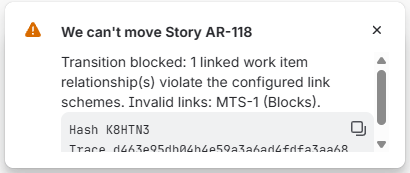
When the validator blocks a transition, an error message appears on the transition screen or, if the transition is attempted elsewhere (for example, on a board or in a list), as a toast notification. The message depends on the validation mode:
- Links allowed by link scheme: “Transition blocked: {count} linked work item relationship(s) violate the configured link schemes. Invalid links: {linked work item key} ({link type}), ….” The message lists up to five invalid links
- Number of matching links: “This transition requires {required number} matching linked work items. Found: {count}.” The required number is expressed as “at least {min}”, “at most {max}”, “exactly {number}”, or “between {min} and {max}”, depending on the configuration
To proceed, the user must:
- update or remove invalid links (Links allowed by link scheme), or
- add or remove links to meet the required number (Number of matching links)
The Dependencies Panel highlights invalid links, which makes them easy to find and fix.
Notes
- The validator does not modify links – it only allows or blocks the transition
- Validation uses the current configuration at the moment of the transition
- If Dependency Governance is uninstalled, its validators remain in workflows as Unavailable rule, with the message: “This marketplace rule was registered by an app that is no longer installed.” Remove these rules from your workflows when uninstalling the app
- If the app license is inactive, this validator allows the transition without checking links
Permissions
Configuring the validator requires:
- Permission to edit the workflow